MarketPlace
The AI Cockpit MarketPlace is a centralized hub accessible directly from the VSCode plugin, allowing you to discover, browse, and download extensions that enhance your AI Cockpit experience.
Overview
The MarketPlace provides access to two main categories of extensions:
- MCP Servers - Model Context Protocol servers that provide additional tools and resources
- Modes - Specialized AI modes tailored for specific development tasks
Access the MarketPlace anytime by clicking the MarketPlace icon in the AI Cockpit sidebar or using the command palette.
MarketPlace Interface
The MarketPlace features a clean, tabbed interface that makes it easy to browse and manage extensions.
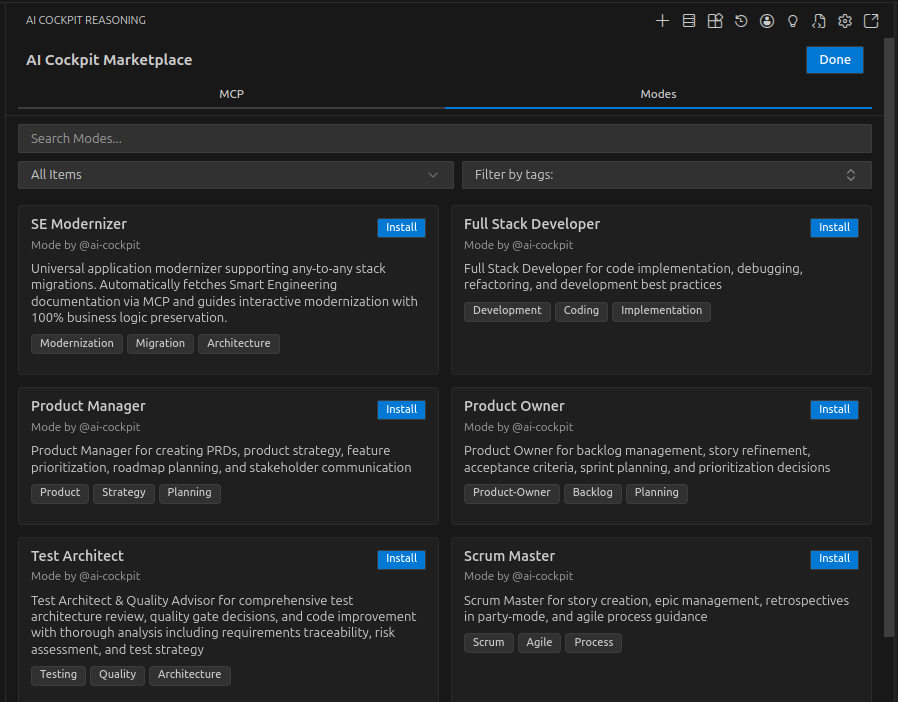
Navigation Tabs
The MarketPlace is organized into two main tabs:
- MCP Tab
- Modes Tab
The MCP tab displays available Model Context Protocol servers. These servers extend AI Cockpit's capabilities by providing:
- Additional tools for specialized tasks
- Access to external APIs and services
- Custom resources and data sources
- Integration with third-party platforms
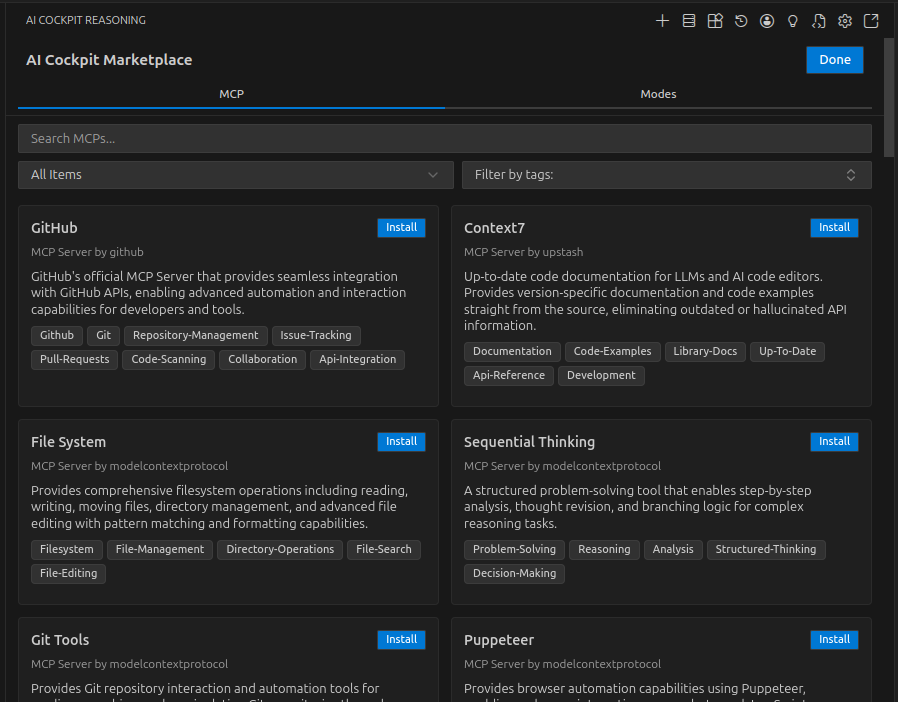
Each MCP server listing includes:
- Server name and description
- Available tools and resources
- Installation instructions
- Tags for easy filtering
The Modes tab showcases available AI modes. Modes are specialized configurations that optimize AI Cockpit for specific development scenarios:
- Code Mode - For writing and refactoring code
- Debug Mode - For troubleshooting and fixing issues
- Architect Mode - For planning and designing systems
- Custom Modes - Community-created modes for specialized tasks
Each mode listing includes:
- Mode name and description
- Specialized capabilities
- Use case scenarios
- Installation and configuration details
Browsing and Filtering
The MarketPlace provides several features to help you find the right extensions:
| Feature | Description |
|---|---|
| Search | Quickly find extensions by name or keyword |
| Tags | Filter extensions by category or functionality |
| Sorting | Organize results by popularity, date, or name |
| Details View | View comprehensive information about each extension |
Installing Extensions
Installing MCP Servers
- Navigate to the MCP tab in the MarketPlace
- Browse or search for the desired MCP server
- Click on the server to view details
- Click the Install button
- Follow any additional configuration prompts
- The MCP server will be available immediately after installation
Some MCP servers may require additional configuration, such as API keys or connection settings. Check the server's documentation for specific requirements.
Installing Modes
- Switch to the Modes tab in the MarketPlace
- Browse available modes or use search to find specific ones
- Select a mode to view its capabilities and requirements
- Click the Install button
- The mode will be added to your available modes list
- Access the new mode from the mode selector in the chat interface
Try different modes to find the ones that best fit your workflow. You can easily switch between modes during your development tasks.
Managing Installed Extensions
Viewing Installed Items
- Installed MCP servers appear in your MCP configuration
- Installed modes are available in the mode selector dropdown
- Both can be managed through the AI Cockpit settings
Updating Extensions
The MarketPlace automatically checks for updates to installed extensions:
- Update notifications appear when new versions are available
- Click Update to install the latest version
- Review changelog information before updating
Uninstalling Extensions
To remove an extension:
- Locate the installed extension in the MarketPlace
- Click on the extension to view details
- Click the Uninstall button
- Confirm the removal when prompted
Uninstalling an MCP server will remove all its tools and resources. Make sure no active tasks depend on the server before uninstalling.
MarketPlace Features
Tag-Based Discovery
Use tags to discover extensions by category:
- Development - Tools for coding and development
- Testing - QA and testing utilities
- Documentation - Documentation generation tools
- Integration - Third-party service integrations
- Productivity - Workflow enhancement tools
Community Contributions
The MarketPlace includes both official and community-contributed extensions:
- Official extensions are verified and maintained by the AI Cockpit team
- Community extensions are created by developers worldwide
- All extensions undergo review before being listed
Community extensions may have varying levels of support and maintenance. Check the extension's documentation and reviews before installing.
Troubleshooting
Installation Issues
If you encounter problems installing an extension:
- Check your internet connection
- Verify you have the required permissions
- Review the extension's system requirements
- Check the AI Cockpit output panel for error messages
- Restart VSCode if necessary
Extension Not Working
If an installed extension isn't functioning correctly:
- Verify the extension is properly installed
- Check for any required configuration
- Review the extension's documentation
- Look for error messages in the output panel
- Try reinstalling the extension
If you continue to experience issues, consult the AI Cockpit documentation or reach out to the community for support.
Best Practices
Choosing Extensions
When selecting extensions from the MarketPlace:
- ✅ Read the description and documentation thoroughly
- ✅ Check compatibility with your AI Cockpit version
- ✅ Review user ratings and feedback
- ✅ Start with official extensions for critical workflows
- ✅ Test extensions in a non-production environment first
Managing Your Extensions
- Keep extensions updated to the latest versions
- Regularly review and remove unused extensions
- Document any custom configurations
- Back up your extension settings
- Monitor extension performance impact
Next Steps
Now that you understand the MarketPlace, explore:
- Custom Modes - Learn how to create your own modes
- Using MCP in AI Cockpit - Deep dive into MCP integration
- Settings Management - Configure your AI Cockpit environment