Account Access and Management
This guide provides instructions on how to create an account, log in, and recover your password on the platform.
Creating a New Account
If you do not have an account, you can register by following the steps below.
Only previously authorized users can create a new account. If you are unable to register, please contact your organization for assistance.
-
Enter your personal or corporate email on the login page and click "Login."
Login 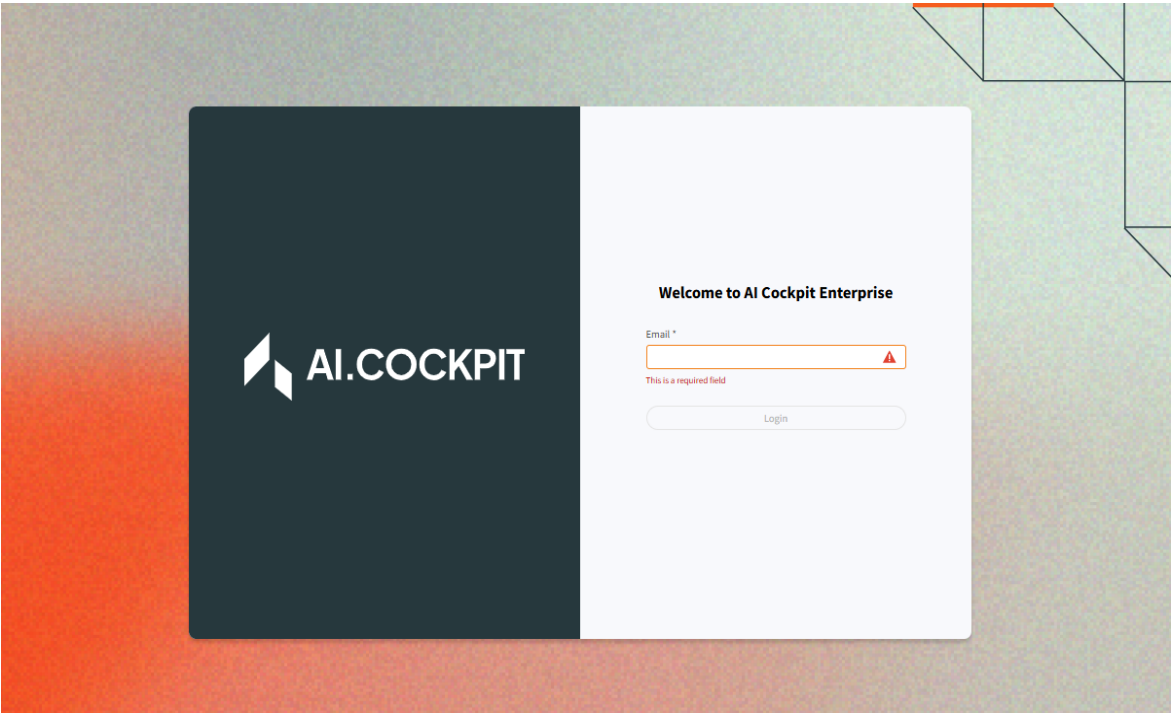
-
On the next screen, click the "Create an Account" button.
Create Account 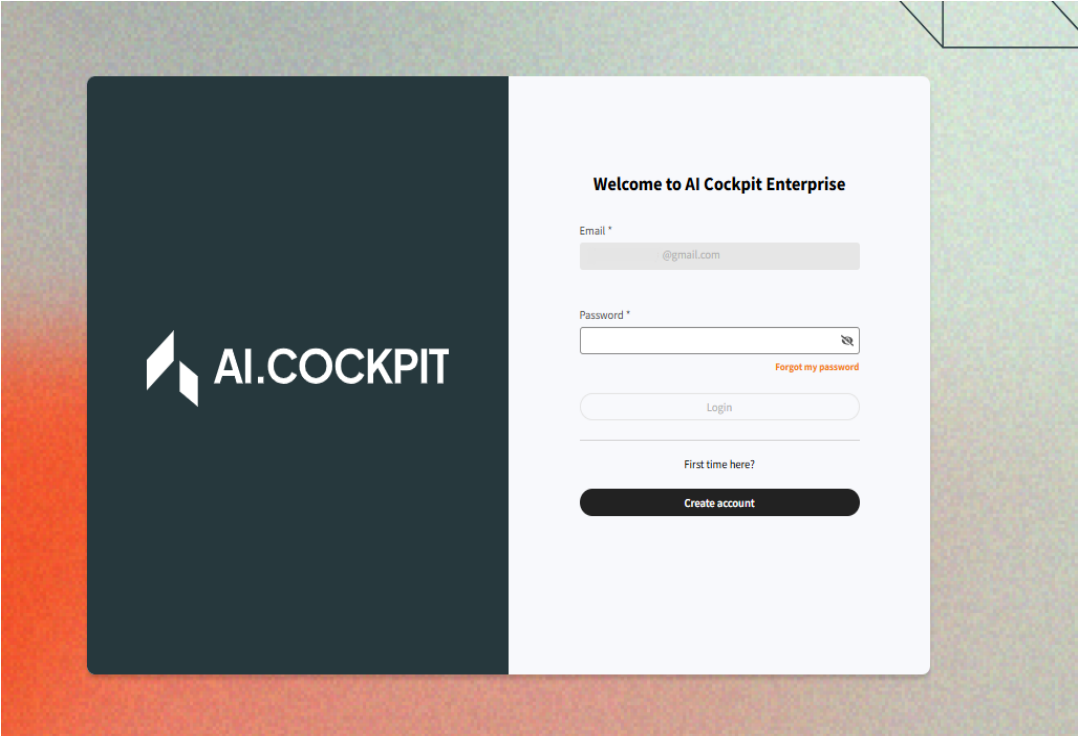
-
Enter a password that meets the specified requirements. The "Continue" button will be enabled once the requirements are met.
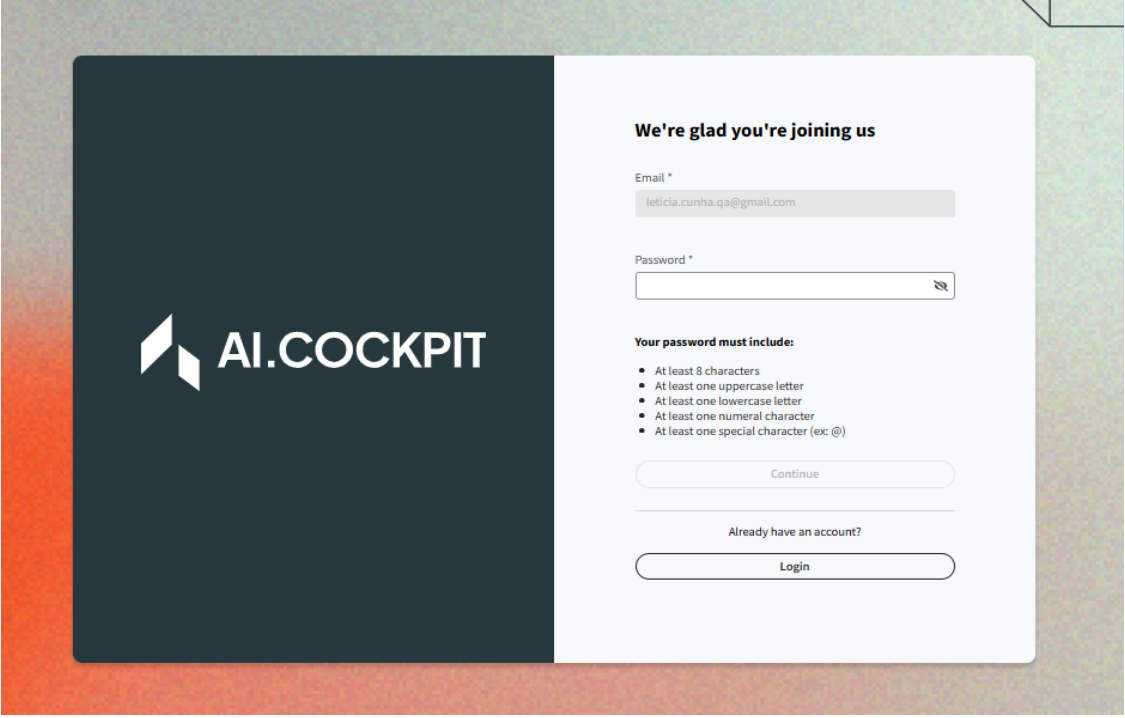
-
An alert will inform you that a verification code has been sent to your email.
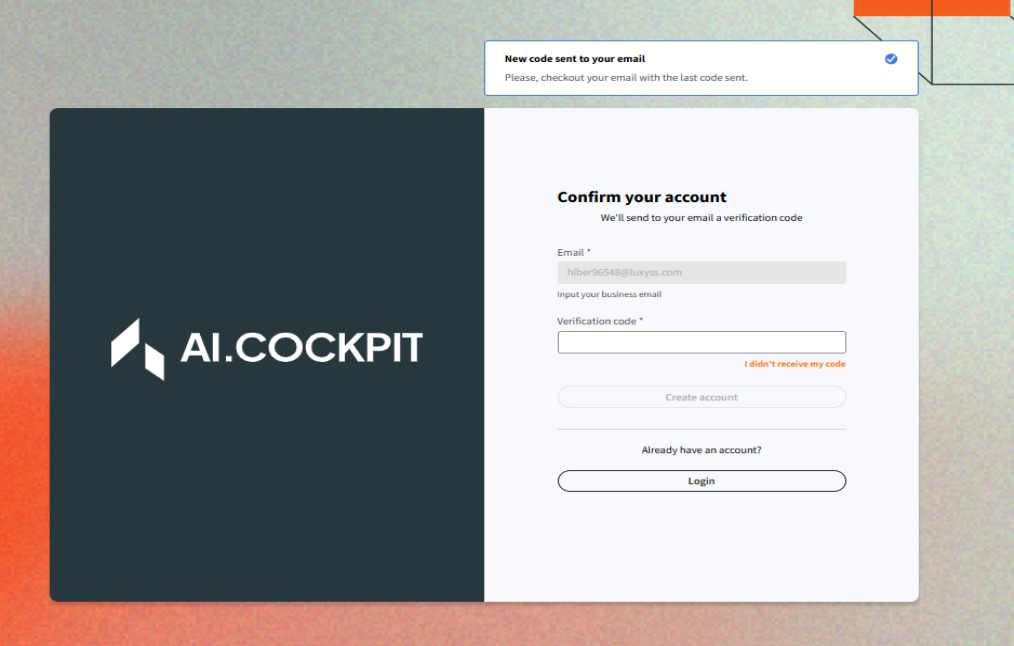
-
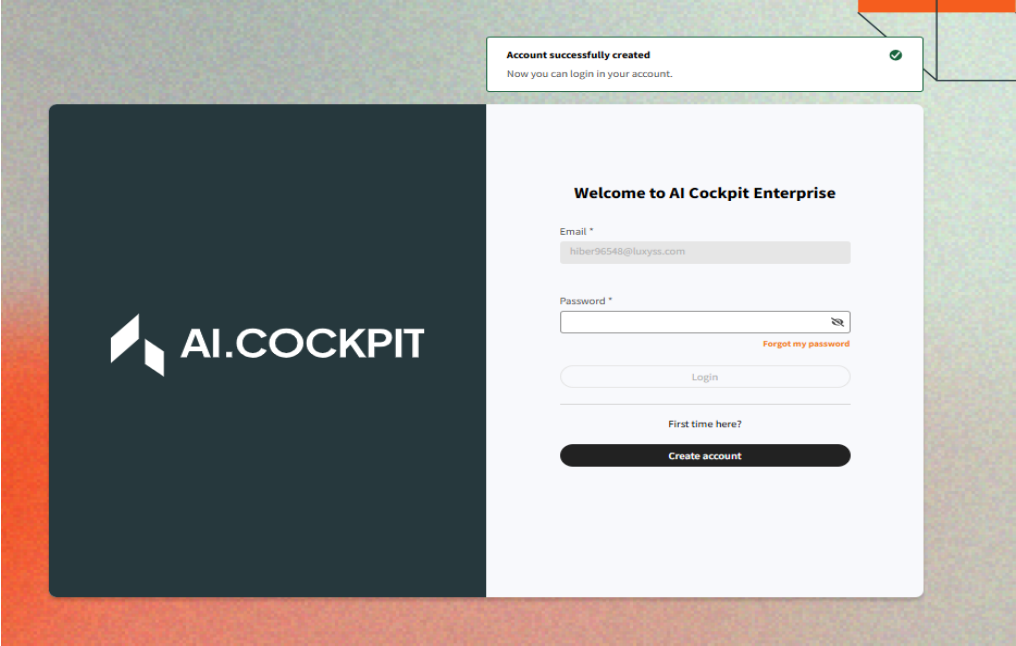
Check your email for the code and enter it in the "Verification Code" field. The "Create Account" button will then be enabled.
-
If the code is correct, you will be redirected to the homepage, and your account will be created.
Accessing Your Account
You can log in to the platform using either a corporate or a personal email.
Corporate Account
-
Navigate to the login page, enter your corporate email in the "Email" field, and click "Login."
-
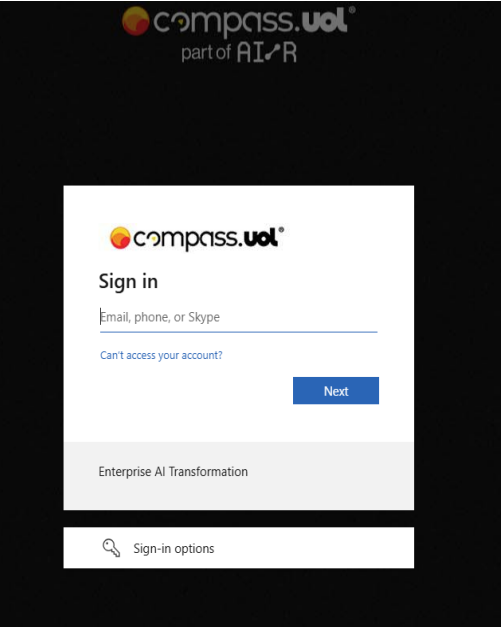
You will be redirected. Enter your corporate email again and click "Next."
-
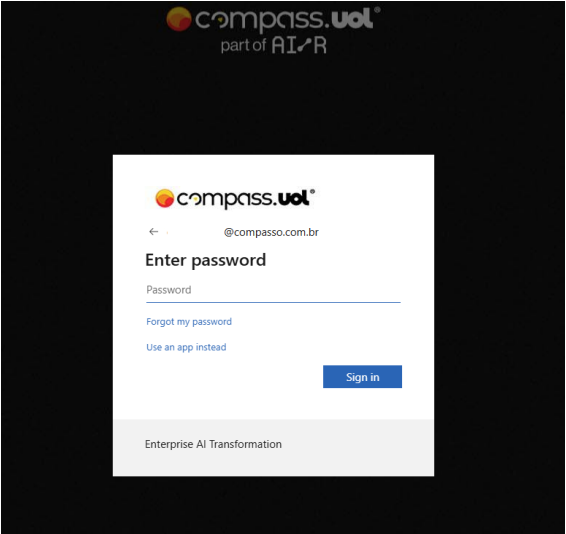
Enter your corporate password in the "Password" field and click "Sign In."
-
Complete the two-factor authentication using the "Authenticator" app on your mobile device.
-
After confirmation, you can choose to save your login information. You will then be redirected to the platform.
Personal Account
-
Go to the login page and enter your personal email in the "Email" field.
-
You will be redirected to a new page. Enter your password and click "Login." You will then be immediately redirected to the platform.
Password Recovery
If you forget your password, you can recover it by following these steps.
Password recovery is only available for personal accounts. If you have a corporate account, please contact your organization for assistance.
-
Click the "Forgot my password" button on the login page.
-
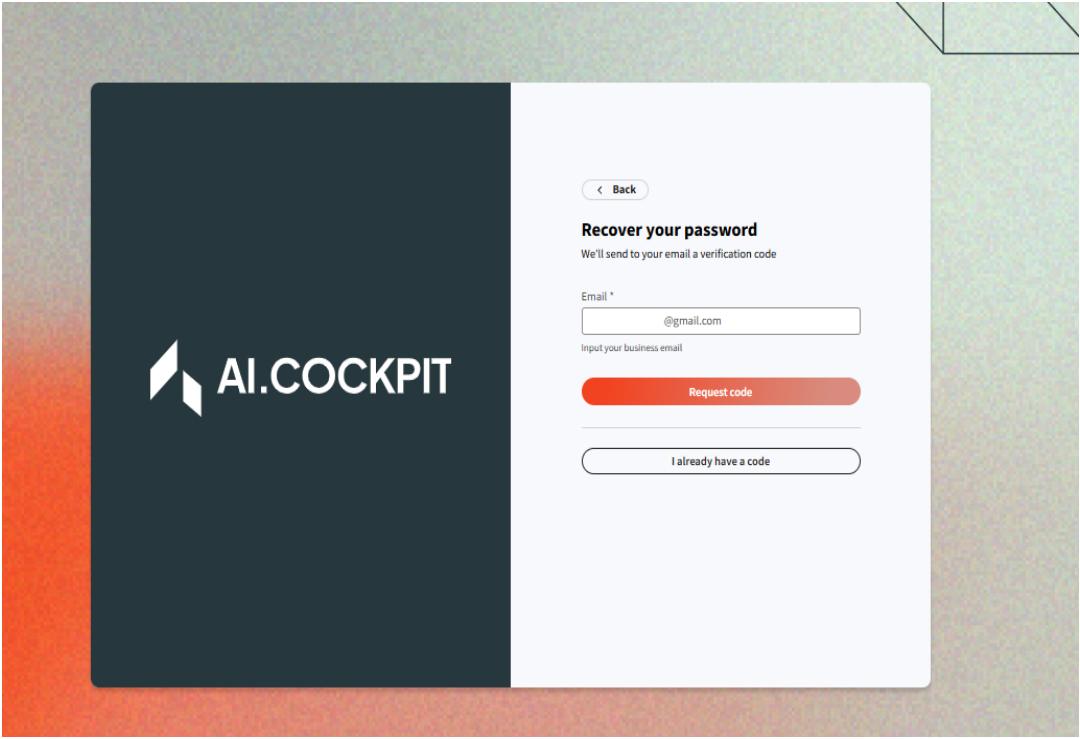
You will be redirected to a new page. Enter your email and click "Request Code" to receive a verification code.
-
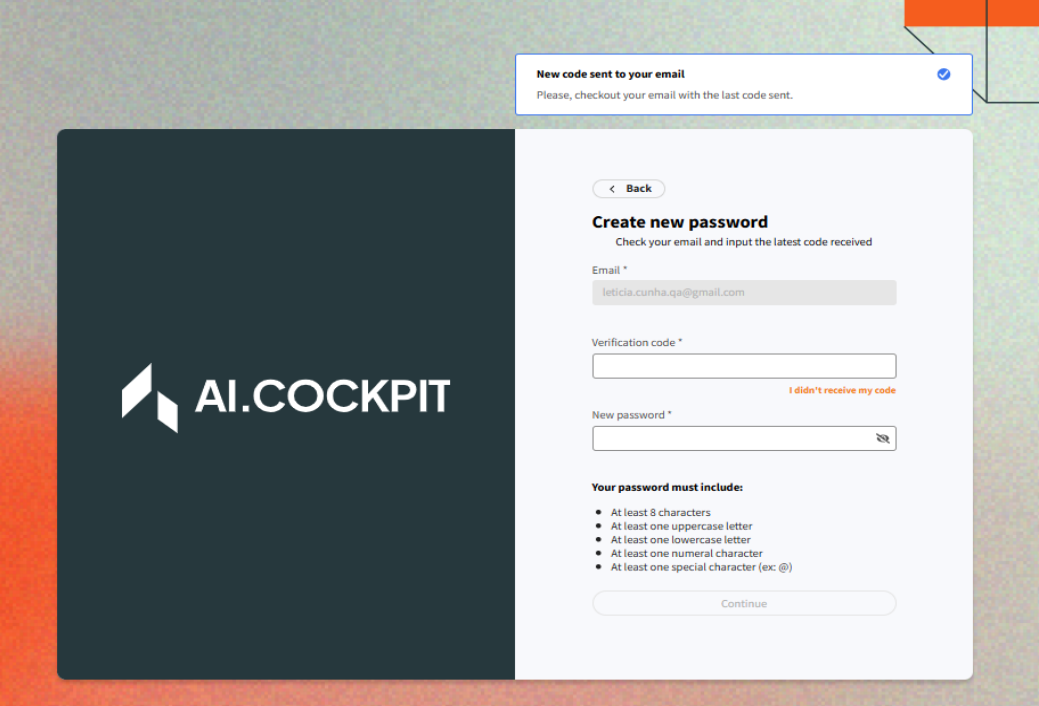
An alert will confirm that the code has been sent to your email.
-
Retrieve the code from your email, select the "I already have a code" option, and you will be redirected to a page where you can enter the code and set a new password.
infoThe "Continue" button will only be enabled after both fields are filled out.
-
After entering the code and your new password, click "Continue." You will be redirected to the login page to sign in with your new credentials.