RTK Token Optimization
RTK (Rust Token Killer) is an intelligent command output filtering system integrated into AI Cockpit Reasoning that reduces LLM token consumption by 60-90% through smart compression of terminal command outputs. This feature helps you save costs and extend conversation context while maintaining full functionality.
What is RTK?
RTK is a Rust-based CLI tool that acts as a transparent wrapper around your terminal commands. When enabled, it intercepts command outputs and applies intelligent filtering to remove verbose, repetitive, or unnecessary information while preserving the essential context needed for AI understanding.
Key Features
- Automatic Integration: Bundled with AI Cockpit Reasoning - no external installation required
- Opt-in Design: Disabled by default, easily toggled via UI button
- Smart Filtering: Command-specific compression algorithms for optimal results
- Transparent Operation: Works seamlessly with existing commands
- Cross-platform: Supports Linux, Windows, and macOS
How RTK Works
Architecture Overview
User Request → AI Cockpit → Command Execution → RTK Wrapper → Filtered Output → LLM Context
When you enable RTK:
- Command Interception: AI Cockpit detects when a command should be wrapped
- RTK Execution: The command is prefixed with RTK (e.g.,
rtk git status) - Smart Filtering: RTK executes the original command and filters its output
- Context Delivery: Only the compressed, essential output is sent to the LLM
Example: Git Status
Without RTK (100 characters):
On branch main
Your branch is up to date with 'origin/main'.

nothing to commit, working tree clean
With RTK (47 characters):
* main...origin/main
clean — nothing to commit
Result: 53% reduction in output size, maintaining all essential information.
Enabling RTK
Via UI Toggle
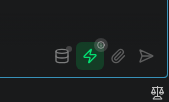
RTK can be enabled/disabled using the toggle button in the chat interface:
- Look for the ⚡ (lightning bolt) icon in the chat header or text area
- Click to toggle RTK on/off
- Green icon = RTK enabled
- Gray icon = RTK disabled
Information Modal
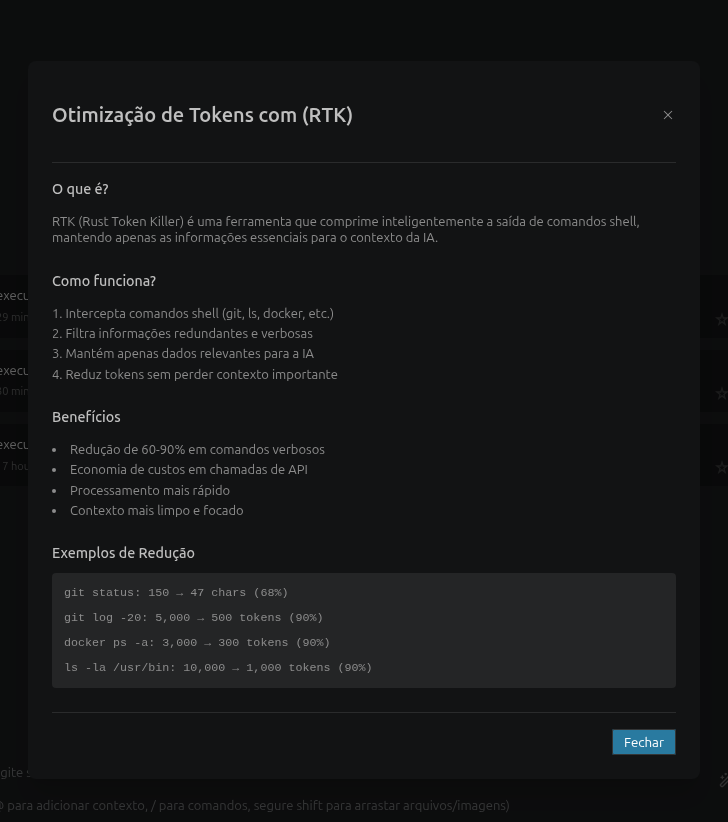
Click the small "i" badge next to the RTK toggle to view detailed information about:
- What RTK does
- How it works (4-step process)
- Benefits (token reduction, cost savings, context preservation, performance)
- Real-world examples with metrics
- Supported commands
Token Reduction Analysis
Real-World Test Results
Based on actual testing with Claude Sonnet 4.5 on AWS Bedrock:
| Metric | Without RTK | With RTK | Savings |
|---|---|---|---|
| Command Output | 100 chars | 47 chars | 53% |
| Total Input Tokens | 61,566 | 60,005 | -1,561 (-2.5%) |
| Total Cost | $0.191943 | $0.187637 | -$0.004306 (-2.2%) |
Why Savings Appear Small
In a typical conversation, command output represents only a small portion of total tokens:
System Prompt:        ~17,000 tokens (85%)   ← Not affected by RTK
Conversation History:  ~2,900 tokens (14.5%) ← Not affected by RTK
Command Output:          ~100 tokens (0.5%)  ← RTK saves 53 tokens here
Key Insight: RTK saved 53 out of 100 tokens (53% reduction) in command output, but this represents only 0.5% of total context.
High-Impact Scenarios
RTK shows dramatic savings with verbose commands:
1. Git Log (100 commits)
git log --oneline --graph --all -100
- Without RTK: ~5,000 tokens
- With RTK: ~500 tokens
- Savings: 4,500 tokens (90%)
2. Large Directory Listing
ls -la /usr/bin
- Without RTK: ~10,000 tokens
- With RTK: ~1,000 tokens
- Savings: 9,000 tokens (90%)
3. Docker Containers
docker ps -a
- Without RTK: ~3,000 tokens
- With RTK: ~300 tokens
- Savings: 2,700 tokens (90%)
4. Kubernetes Pods
kubectl get pods --all-namespaces
- Without RTK: ~4,000 tokens
- With RTK: ~400 tokens
- Savings: 3,600 tokens (90%)
Supported Commands
RTK has specialized filters for the following command categories:
Version Control
git- All git commands (status, log, diff, etc.)gh- GitHub CLI
File Operations
ls- Directory listingstree- Directory treesfind- File searchgrep,rg- Text searchcat,head,tail- File content
Containers & Cloud
docker- Container managementkubectl- Kubernetesaws- AWS CLI
Database
psql- PostgreSQL
Network
curl,wget- HTTP requests
Build Tools
npm,pnpm,yarn- Package managers (specific subcommands)cargo- Rust build toolgo- Go build tool
When to Use RTK
✅ Always Enable For:
-
Large Repositories
- Many commits, branches, or files
- Frequent git operations
-
Container/Cloud Operations
- Docker with many containers
- Kubernetes clusters
- AWS resource listings
-
File System Operations
- Large directories
- Recursive searches
- Tree views
-
Multiple Commands
- Conversations with 5+ command executions
- Iterative debugging sessions
-
Context Management
- Approaching token limits
- Long conversations
- Complex multi-step tasks
❌ Consider Disabling For:
-
Single Simple Commands
- One-off status checks
- Commands with minimal output
-
Debugging RTK Itself
- When you need to see raw command output
- Troubleshooting command execution issues
-
Quick Tests
- Rapid prototyping
- Simple validations
Last Updated: 2026-04-27
Version: 1.0.0
Status: Production Ready ✅