Accessing the Application
This page explains how to sign in to Adoption and navigate its main interface.
Signing In
Adoption uses Single Sign-On (SSO). When you open the application, you are redirected to your organization's identity provider. After authenticating, you are returned to the application automatically.
- Open the application URL.
- Enter your corporate email to continue the login flow.
- Complete the identity provider authentication.
- Wait for the application to finish loading your session.
Your session is managed automatically. If your session expires, you will be prompted to log in again. Use the Log out option in the account menu to end your session manually.
Selecting an Organization
After logging in, you must select an organization before any data is available. The organization selector is located in the top-right area of the header.
- Click the organization dropdown in the header.
- Search for or scroll to find your organization.
- Select it — the application reloads the provider configuration, repository scope, and dashboard results for that organization.
If no organization is selected, the dashboard and settings screens will not display any data. Always select an organization after logging in.
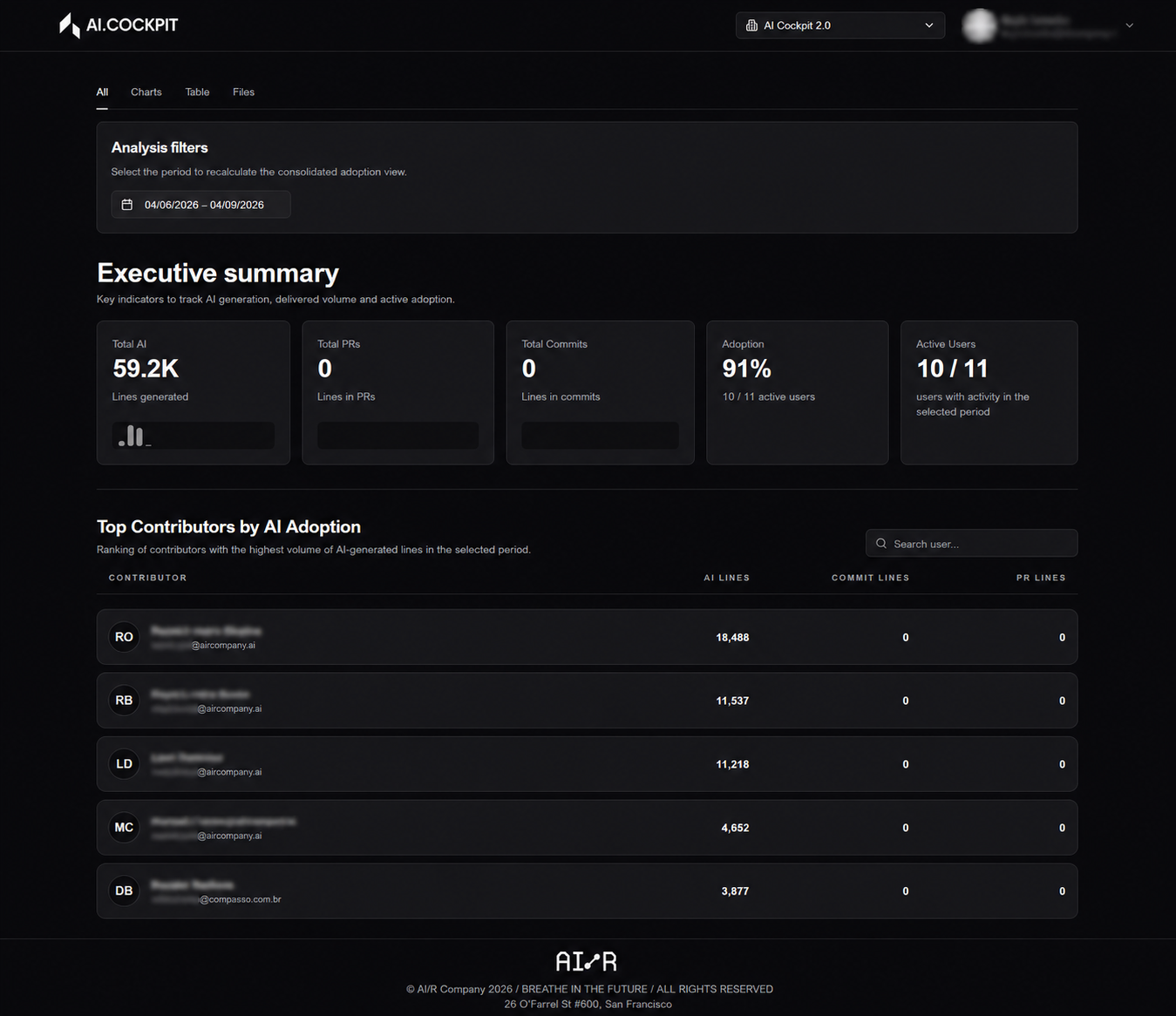
Header Navigation
The header is present on every screen and provides access to the main controls:
| Element | Description |
|---|---|
| Application logo | Click to return to the dashboard |
| Organization selector | Switch between organizations |
| Account menu | Access profile, settings, and log out |
Account Menu
Click your avatar or name in the top-right corner to open the account menu:
- Profile — view and manage your user profile
- Settings — application settings
- Log out — end your current session
Next Steps
Once you have selected an organization, head to the Dashboard to review the adoption analysis.