Browser Authentication Issue (Chrome & Edge)
When attempting to log in to AI Cockpit through the VS Code extension, users can successfully authenticate on the web browser (app.aicockpit.ai), but when returning to VS Code, the authentication fails with a timeout error. The VS Code extension does not complete the login process.
Understanding the Issue
Recent updates to Chromium-based browsers (Chrome and Edge) have introduced stricter security settings regarding local network access. By default, these browsers now block websites from accessing local network resources, which prevents the AI Cockpit web application from communicating back to the VS Code extension running on your local machine.
This security feature is designed to protect users from malicious websites attempting to access local services, but it also affects legitimate integrations like the AI Cockpit authentication flow between the browser and VS Code.
Solution
To resolve this issue, you need to enable "Access to local network" permission for the AI Cockpit website in your browser:
Step-by-Step Instructions for Chrome
- Navigate to app.aicockpit.ai in Chrome
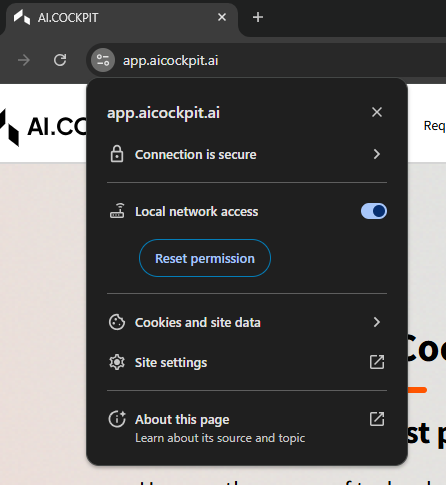
- Click on the lock icon (or site information icon) in the address bar, next to the URL
- Click on "Site settings" or "Permissions"
- Find the "Access to local network" setting
- Toggle it to "Allow" (enable the switch)
Step-by-Step Instructions for Edge
- Navigate to app.aicockpit.ai in Edge
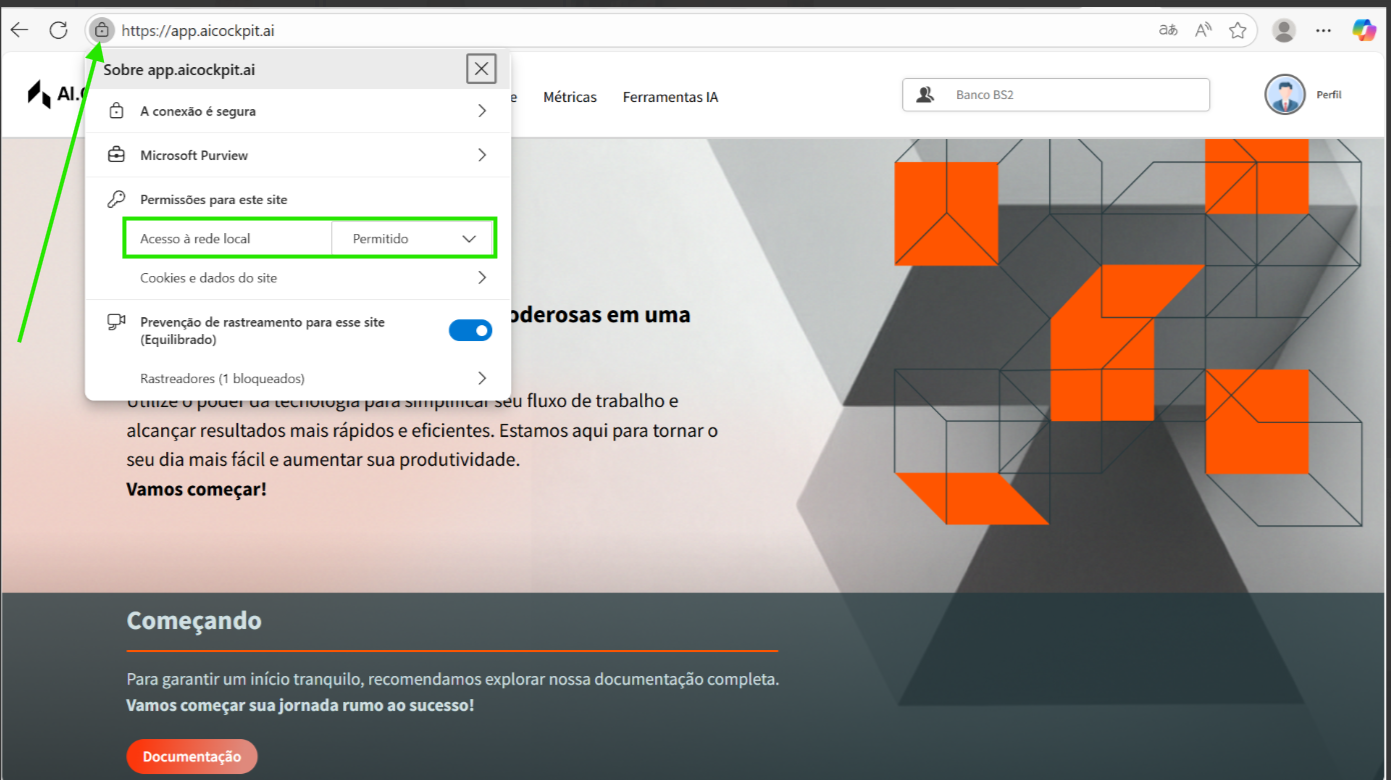
- Click on the lock icon in the address bar, next to the URL
- Click on "View site information"
- Find the "Local network access" setting and toggle it to "Allow"
- Click "Refresh" in the browser
- Restart VS Code
- Log in to VS Code again
After enabling this permission, return to VS Code and attempt to log in again. The authentication should now complete successfully! 🎉
Additional Information
- One-time configuration: This setting only needs to be configured once per browser profile
- Site-specific: The permission is specific to app.aicockpit.ai and does not affect other websites
- Multiple profiles: If you use multiple browser profiles, you'll need to enable this setting in each profile where you use AI Cockpit
- Other browsers: Other Chromium-based browsers (Opera, Vivaldi, Brave) may have similar settings that need to be configured
Still Having Issues?
If you continue to experience authentication problems after following these steps:
- Clear browser cache: Try clearing your browser's cache and cookies for app.aicockpit.ai
- Restart VS Code: Close and reopen VS Code completely
- Check firewall: Ensure your firewall isn't blocking localhost connections
- Try incognito/private mode: Test if the issue persists in an incognito/private window (you'll need to set the permission there too)
If the problem persists, please contact our support team with details about your browser version and operating system.